Yet another OneDrive index, powered by CloudFlare Workers.
---
[](https://storage.spencerwoo.com/)
[](https://github.com/spencerwooo/onedrive-cf-index/actions?query=workflow%3ADeploy)
[](./README-CN.md)
This project uses CloudFlare Workers to host and share your personal OneDrive files. It is greatly inspired by: onedrive-index-cloudflare-worker.
## Demo
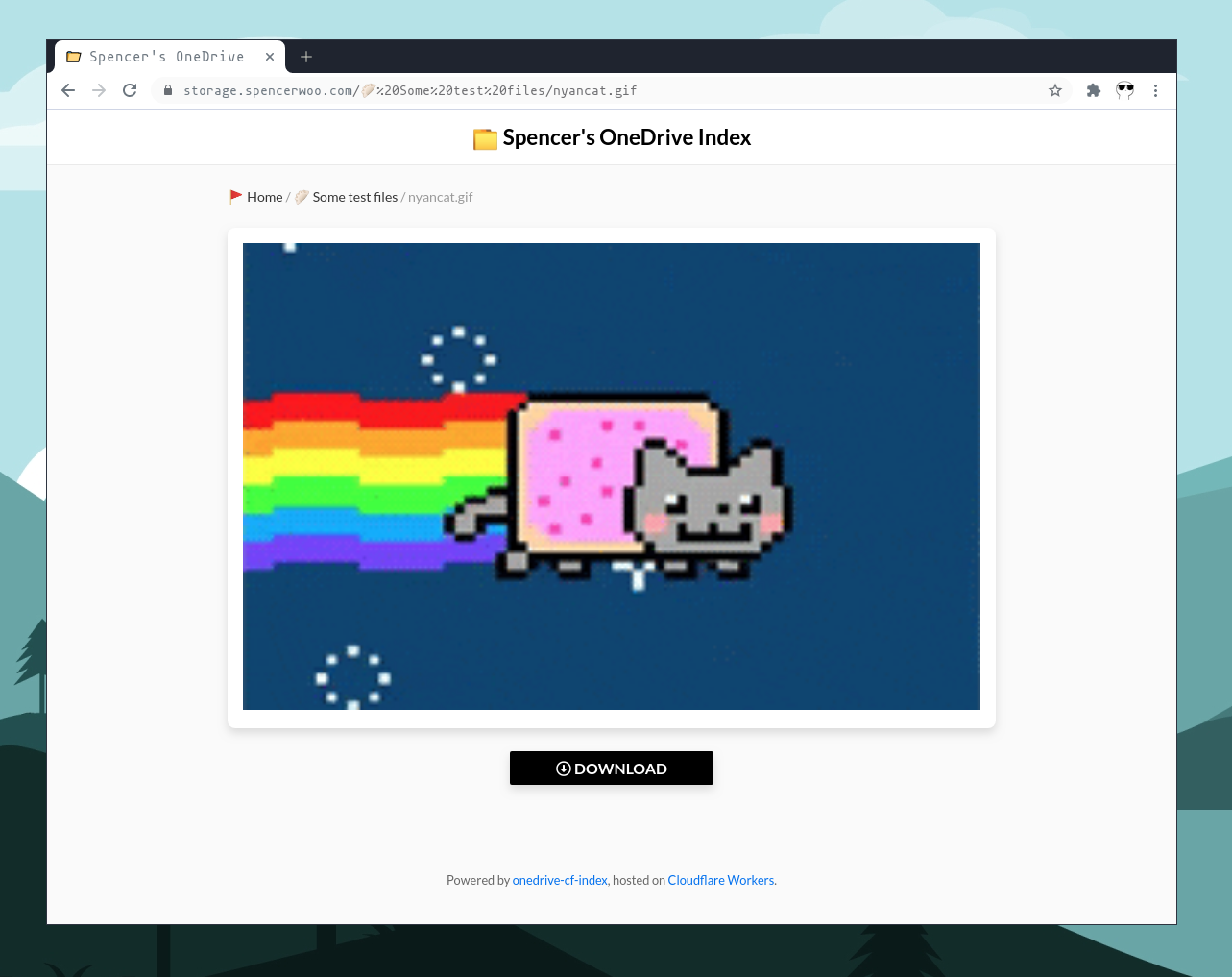
Live demo at [Spencer's OneDrive Index](https://storage.spencerwoo.com/).
## Features
### 🚀 General
- Breadcrumbs for better navigations.
- Tokens cached and automatically refreshed with Cloudflare Workers KV storage.
- Route lazy loading with the help of [Turbolinks®](https://github.com/turbolinks/turbolinks).
- Supports OneDrive 21Vianet.(由世纪互联运营的 OneDrive。)
- Supports mounting SharePoint.
### 🗃️ Folder indexing
- Complete new and customisable design at [spencer.css](themes/spencer.css).
- Emoji as folder icon when available (if the first character of the folder name is an emoji).
- Renders `README.md` if found in current folder. Rendered with [github-markdown-css](https://github.com/sindresorhus/github-markdown-css).
- Supports pagination, no more limitations like 200 items max for each folder ever again!
### 📁 File previews
- File icon rendered according to file type, [Font Awesome icons](https://fontawesome.com/) for cleaner look.
- Plain text: `.txt`. [_DEMO_](https://storage.spencerwoo.com/%F0%9F%A5%9F%20Some%20test%20files/Previews/iso_8859-1.txt).
- Markdown: `.md`, `.mdown`, `.markdown`. [_DEMO_](https://storage.spencerwoo.com/%F0%9F%A5%9F%20Some%20test%20files/Previews/i_m_a_md.md).
- Image, supports Medium style zoom effect: `.png`, `.jpg`, and `.gif`. [_DEMO_](https://storage.spencerwoo.com/%F0%9F%A5%9F%20Some%20test%20files/Previews/).
- Code with syntax highlighting: `.js`, `.py`, `.c`, `.json`.... [_DEMO_](https://storage.spencerwoo.com/%F0%9F%A5%9F%20Some%20test%20files/Code/pathUtil.js).
- PDF: Lazy loading, loading progress and built-in PDF viewer. [_DEMO_]().
- Music / Audio: `.mp3`, `.aac`, `.wav`, `.oga`. [_DEMO_](https://storage.spencerwoo.com/%F0%9F%A5%9F%20Some%20test%20files/Multimedia/Elysian%20Fields%20-%20Climbing%20My%20Dark%20Hair.mp3).
- Videos: `.mp4`, `.flv`, `.webm`, `.m3u8`. [_DEMO_](https://storage.spencerwoo.com/%F0%9F%A5%9F%20Some%20test%20files/Multimedia/%E8%BD%A6%E5%BA%93%E5%A5%B3%E7%8E%8B%20%E9%AB%98%E8%B7%9F%E8%B9%A6%E8%BF%AA%20%E4%B9%98%E9%A3%8E%E7%A0%B4%E6%B5%AA%E7%9A%84%E5%A7%90%E5%A7%90%E4%B8%BB%E9%A2%98%E6%9B%B2%E3%80%90%E9%86%8B%E9%86%8B%E3%80%91.mp4).
### ⬇️ Proxied / raw file download
- [Optional] Proxied download: `?proxied` - Downloads the file through CloudFlare Workers if (1) `proxyDownload` is true in `config/default.js` and (2) parameter is present in url.
- [Optional] Raw file download: `?raw` - Return direct raw file instead of rich rendered preview if parameter is present.
- Both these parameters can be used side by side, meaning that `?proxied&raw` and `?raw&proxied` are both valid.
Yes, this means you can use this project as an image storage service or for serving static files, for example:
```
https://storage.spencerwoo.com/%F0%9F%A5%9F%20Some%20test%20files/nyancat.gif?raw
```

### 🔒 Private folders
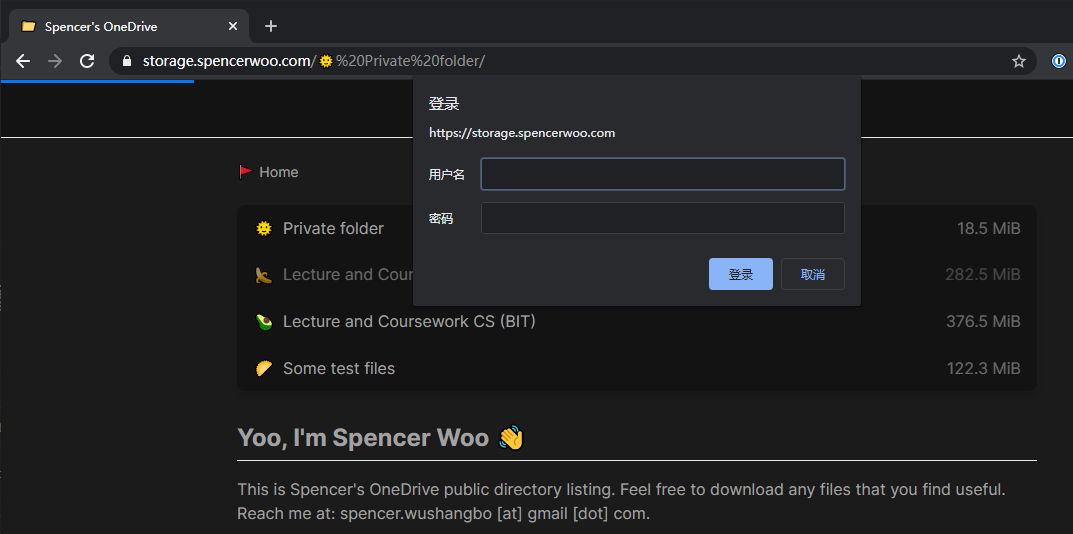
You can limit access to folders (i.e., declaring private folders) by adding their paths to `ENABLE_PATHS` inside `src/auth/config.js`. You can optionally enable this feature with the `AUTH_ENABLED` toggle variable also inside that file, and you can specify the username in `NAME` and the password using wrangler.
Note that the password is stored inside the `AUTH_PASSWORD` Cloudflare Worker secret. You should never commit your password into a git repository, not even a private one. The `AUTH_PASSWORD` secret can be added with wrangler:
```bash
wrangler secret put AUTH_PASSWORD
# Type out your self-defined AUTH_PASSWORD here
```
Check out [the following sections](#preparations) for details on using wrangler to set CloudFlare Worker secrets (which are also called environment variables).
### Others
See the new features section at the original [onedrive-index-cloudflare-worker](https://github.com/heymind/OneDrive-Index-Cloudflare-Worker#-%E6%96%B0%E7%89%B9%E6%80%A7-v11) project page for reference, **although I cannot guarantee that all features are usable.**
## Deployment
_Very, very long, tedious, step by step guide warning!_
### Generating OneDrive API Tokens
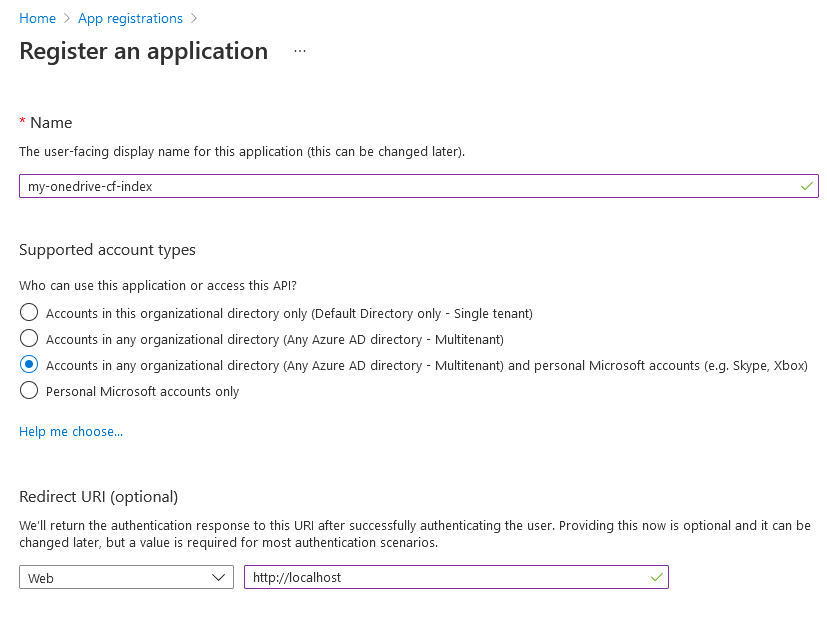
1. Create a new blade app here [Microsoft Azure App registrations](https://portal.azure.com/#blade/Microsoft_AAD_RegisteredApps/ApplicationsListBlade) (OneDrive normal version) or [Microsoft Azure.cn App registrations](https://portal.azure.cn/#blade/Microsoft_AAD_RegisteredApps/ApplicationsListBlade) (OneDrive 世纪互联版本):
1. Login with your Microsoft account, select `New registration`.
2. Input `Name` for your blade app, `my-onedrive-cf-index` for example.
3. Set `Supported account types` to `Accounts in any organizational directory (Any Azure AD directory - Multitenant) and personal Microsoft accounts (e.g. Skype, Xbox)`. OneDrive 世纪互联用户设置为:`任何组织目录(任何 Azure AD 目录 - 多租户)中的帐户`.
4. Set `Redirect URI (optional)` to `Web` (the multiselect dropdown) and `http://localhost` (the URL).
5. Click `Register`.
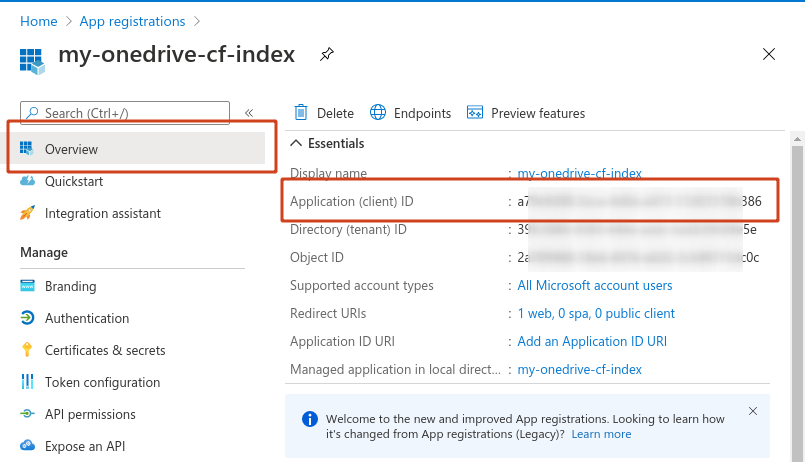
2. Get your Application (client) ID - `client_id` at `Overview` panel.
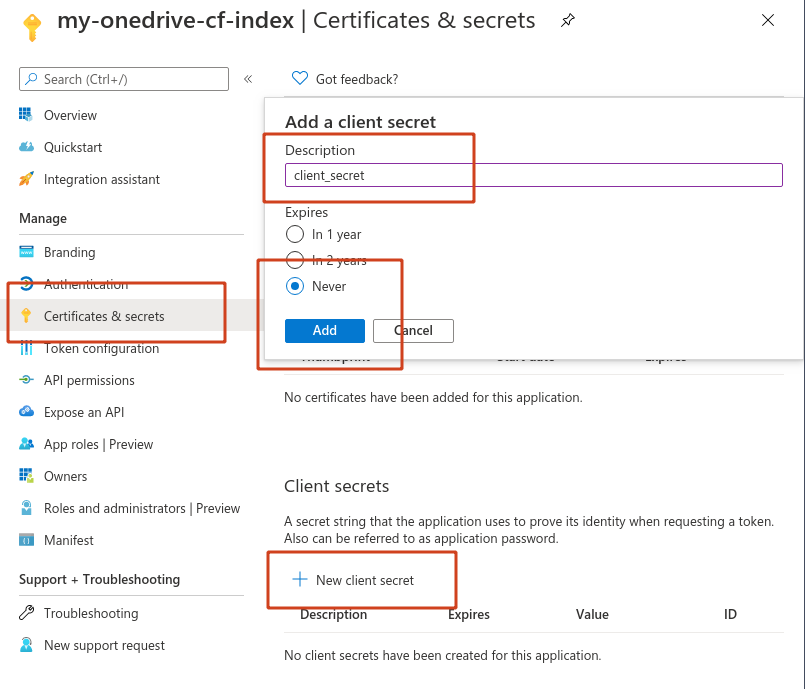
3. Open `Certificates & secrets` panel, click `New client secret` and create a new secret called `client_secret`, set `Expires` to `Never`, click `Add`, and copy the `Value` of the `client_secret` (**You only have this one chance to copy it.**).
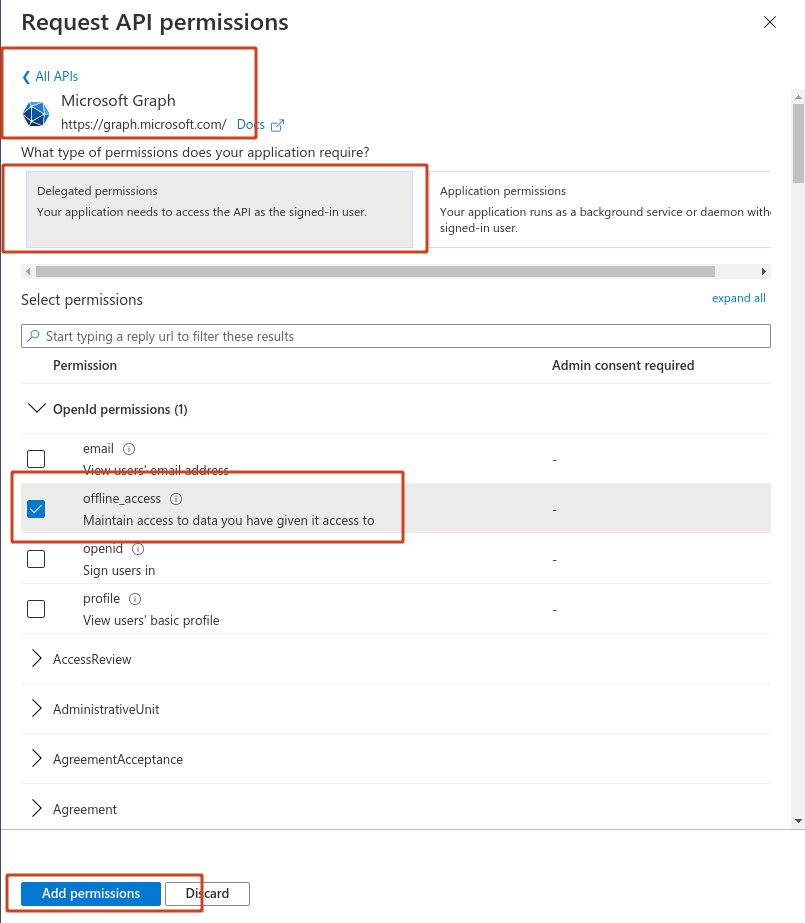
4. Open `API permissions` panel, select `Microsoft Graph`, select `Delegated permissions`, search for `offline_access, Files.Read, Files.Read.All`, **select all three of them** and click `Add permissions`.
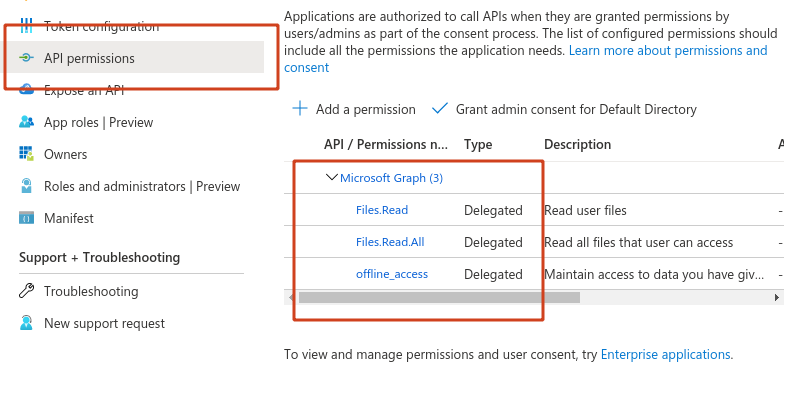
You should have these permissions ready:
5. Get your `refresh_token`. On your local machine that has a working installation of Node.js and npm (See [Preparations](#preparations) for recommendations for installing Node.js and its toolchain), execute the following command:
```sh
npx @beetcb/ms-graph-cli
```